
Ultimate OBS Controller
Ultimate OBS Controller
OBS controller: scenes, studio mode, sources, mic mute, go live from your phone.
Screenshots
Ultimate OBS Controller turns your phone into a remote for OBS Studio on your PC. It finds OBS on your network by itself, so there's no address to type. Put the phone next to your keyboard and switch scenes, mute a mic, go live and record with one big tap, without leaving your game.
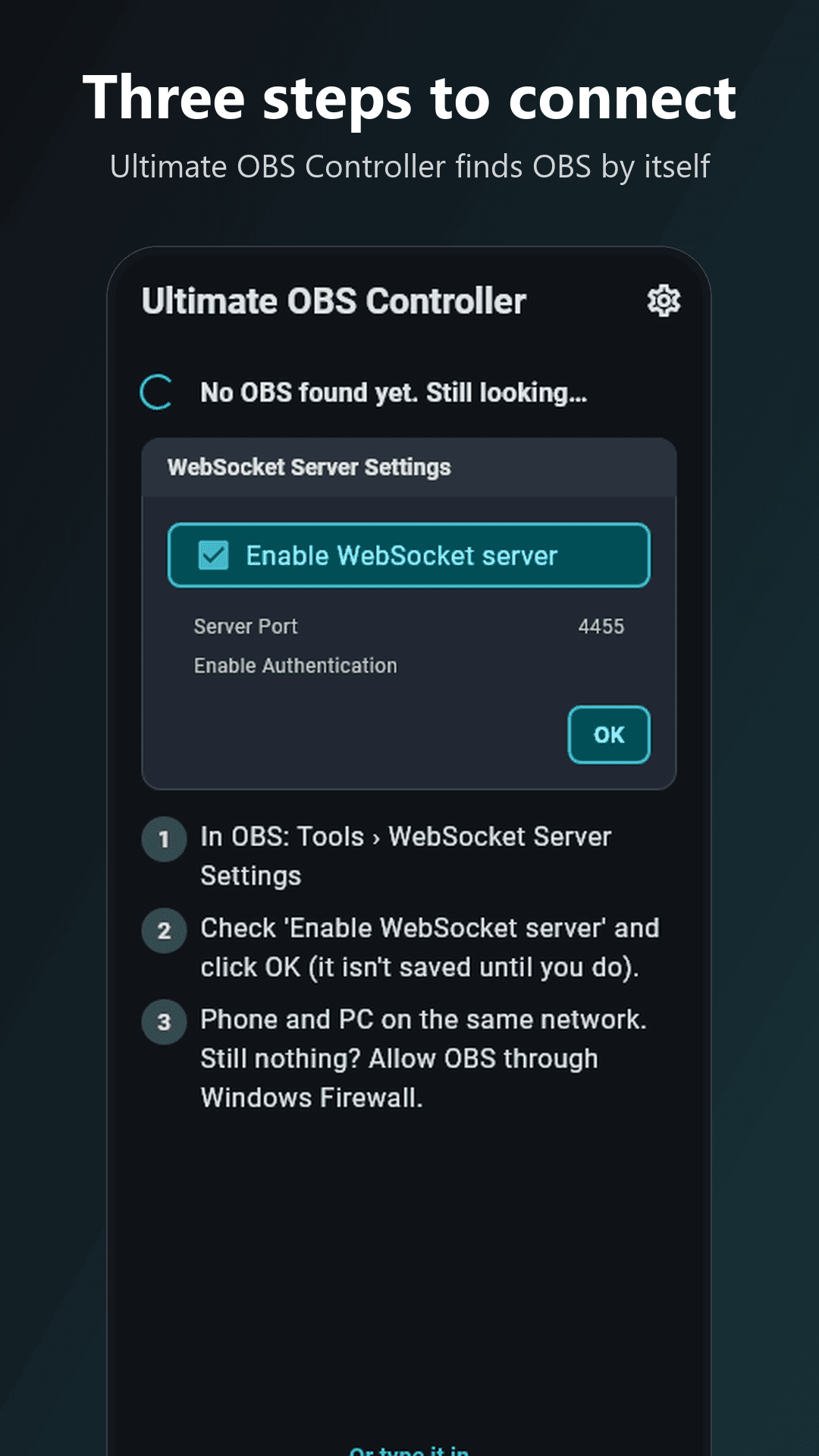
You need OBS Studio 28 or newer on a PC on the same network as your phone. OBS has a WebSocket server built in: in OBS, open Tools › WebSocket Server Settings, check "Enable WebSocket server" and click OK. Then open the app: it finds OBS and opens the deck. If your OBS has a password, tap Scan, click "Show Connect Info" in the same OBS window and point the camera at the code. That's the whole setup.
WHAT YOU GET
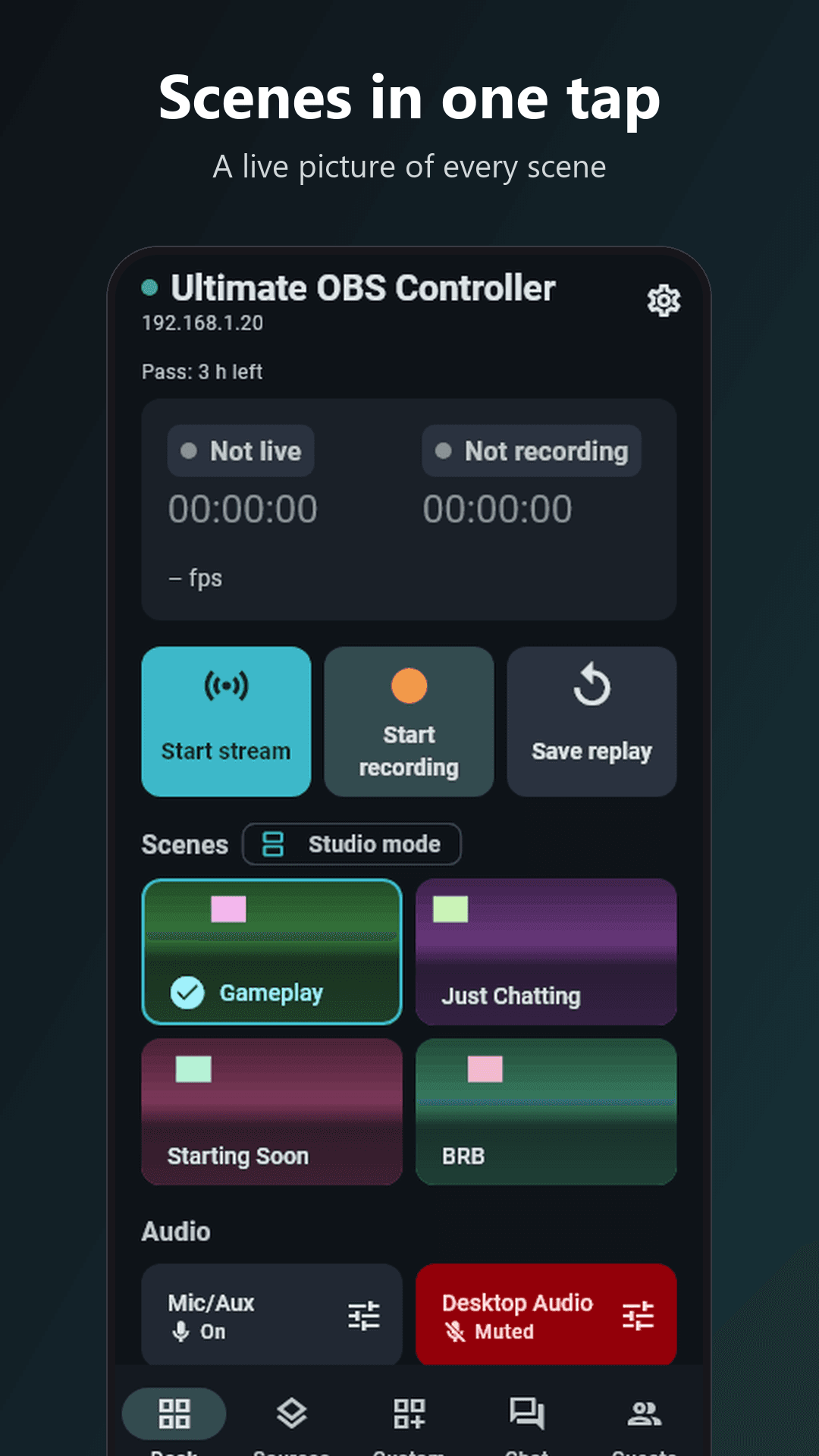
- Scenes: every OBS scene as a big tile. The live scene is highlighted, one tap switches, and the highlight follows OBS when you change scenes on the PC.
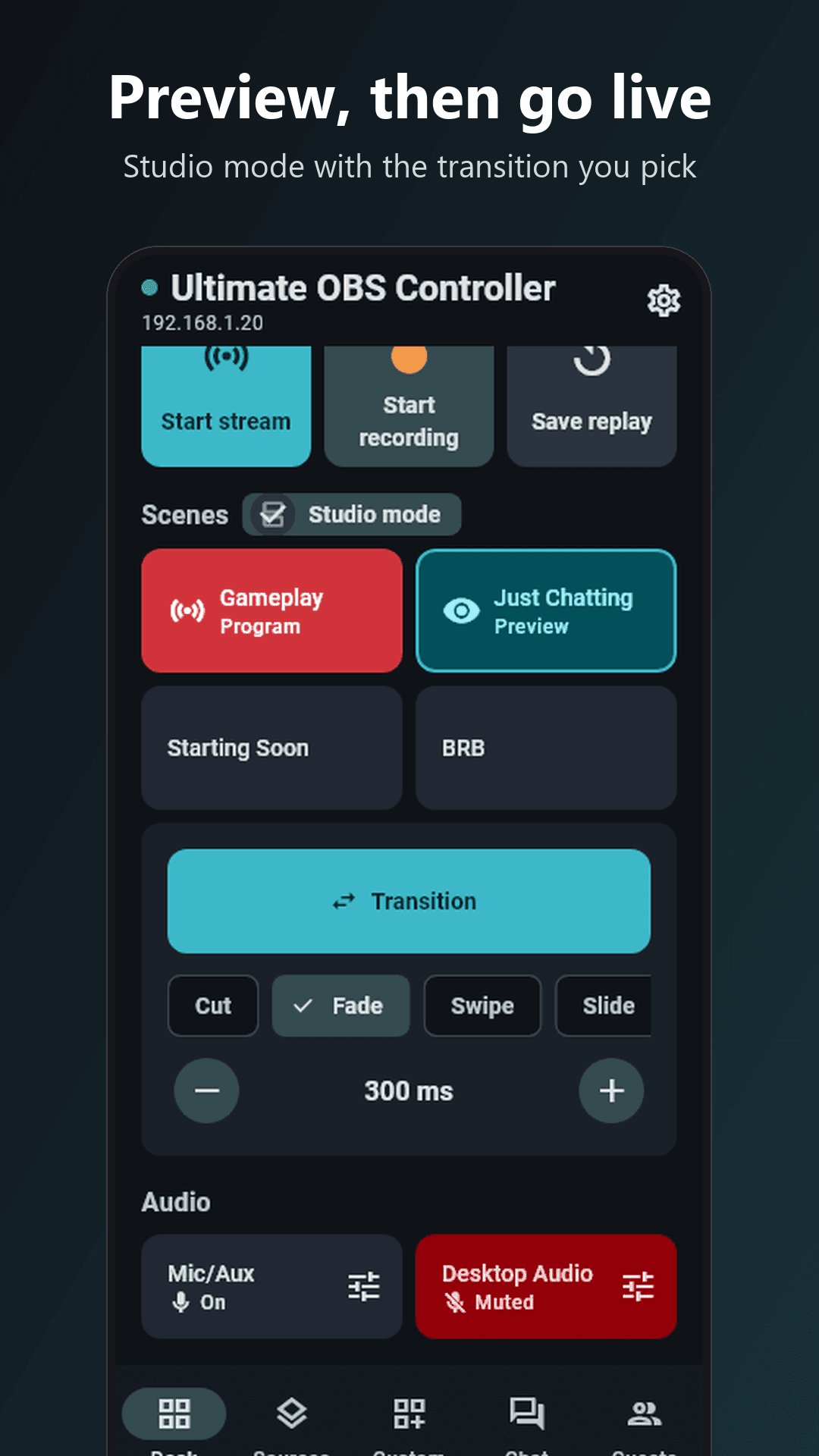
- Studio mode: a tap puts a scene in preview, Transition sends it live. Pick the transition and its length too.
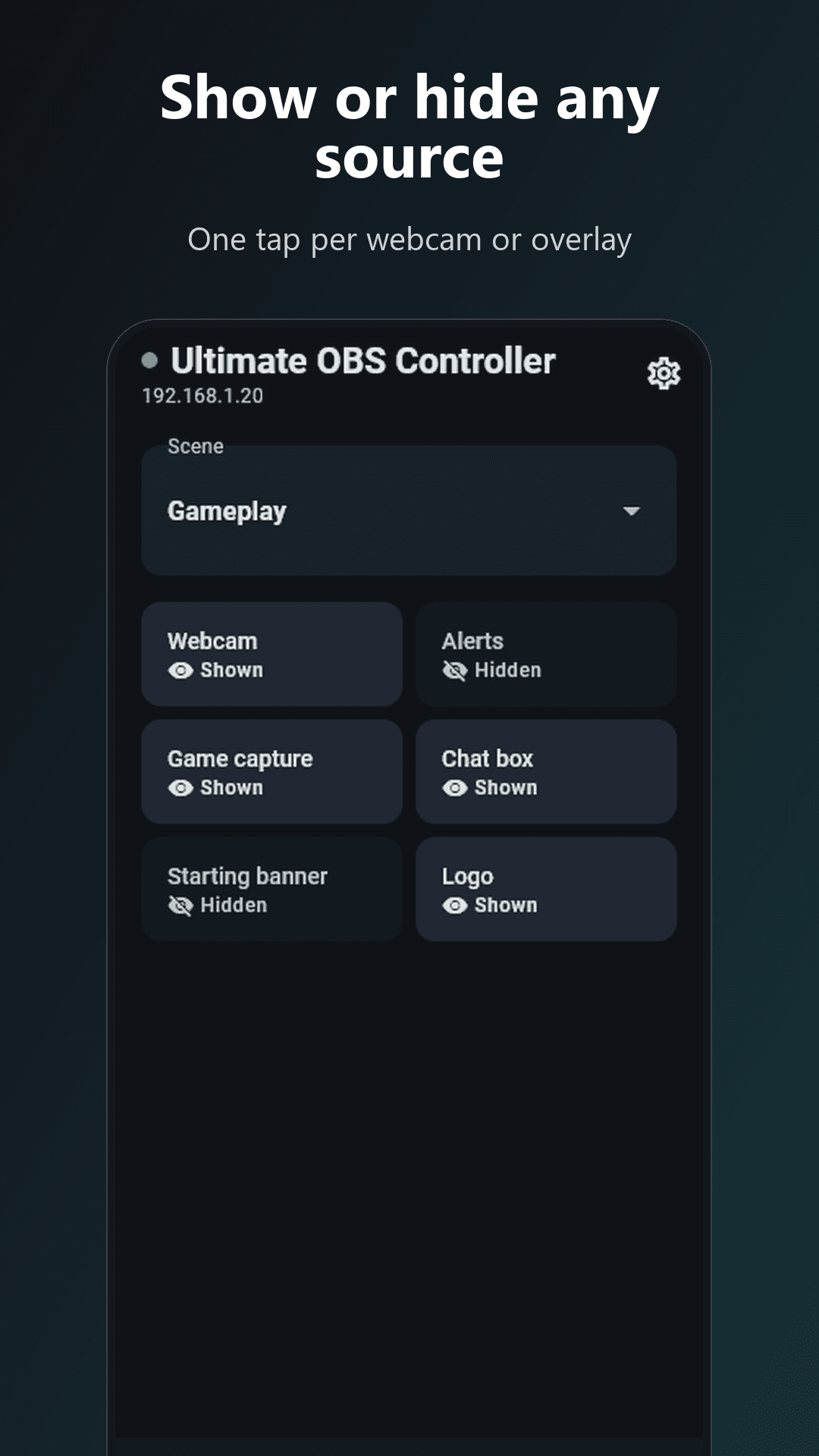
- Sources: show or hide any webcam, overlay or image of a scene with one tap.
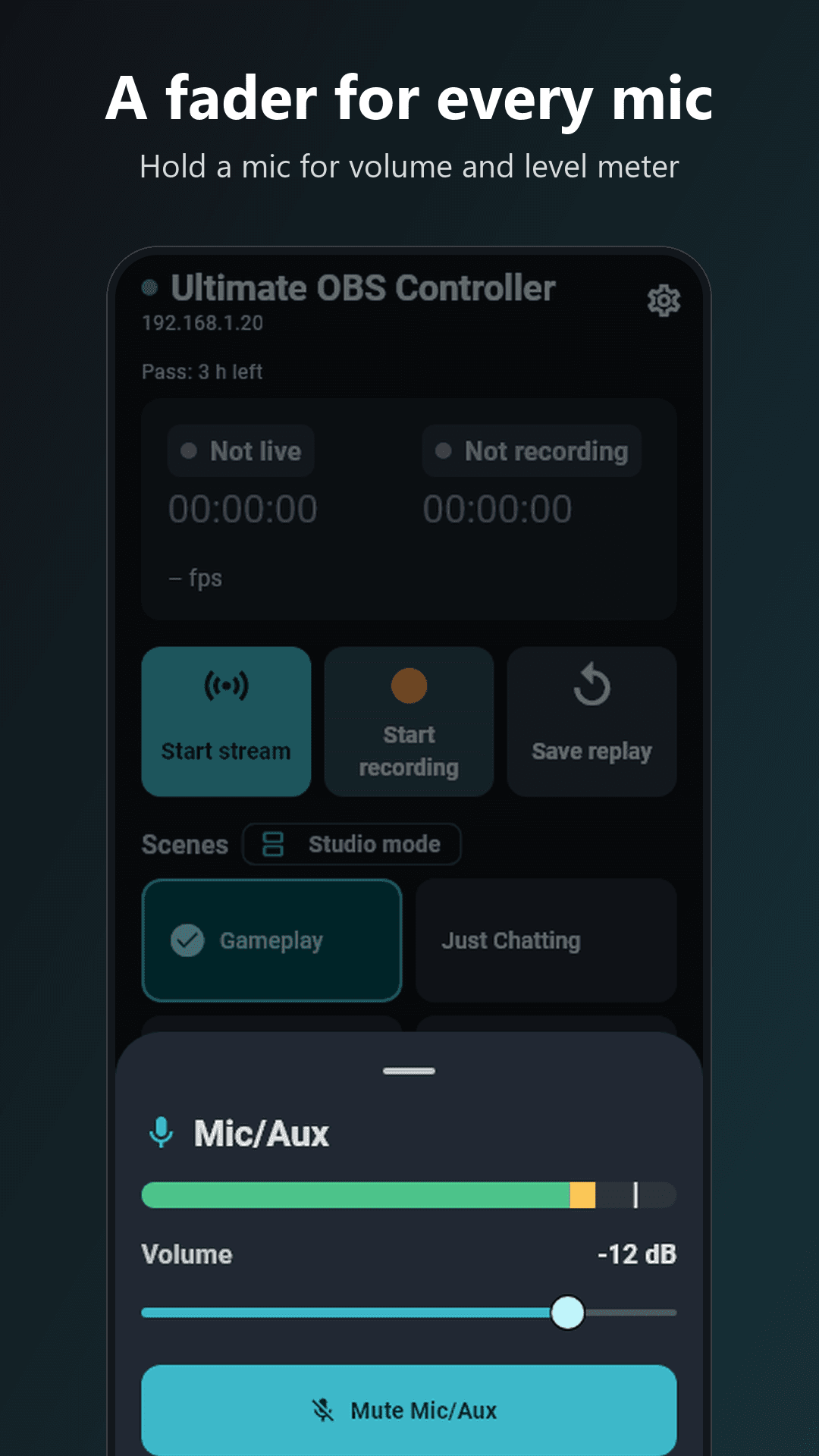
- Audio: one tap mutes or unmutes each mic and desktop audio source.
- Stream, record, save replay: three big buttons. Stopping a live stream asks first, so a slip of the thumb doesn't end your show. If OBS can't start (no stream key, say), the app tells you what to fix in OBS.
- Status: live and recording time, bitrate, dropped frames and FPS, updated every 2 seconds.
- The screen stays on. If the network blips or OBS restarts, the app says so and reconnects by itself.
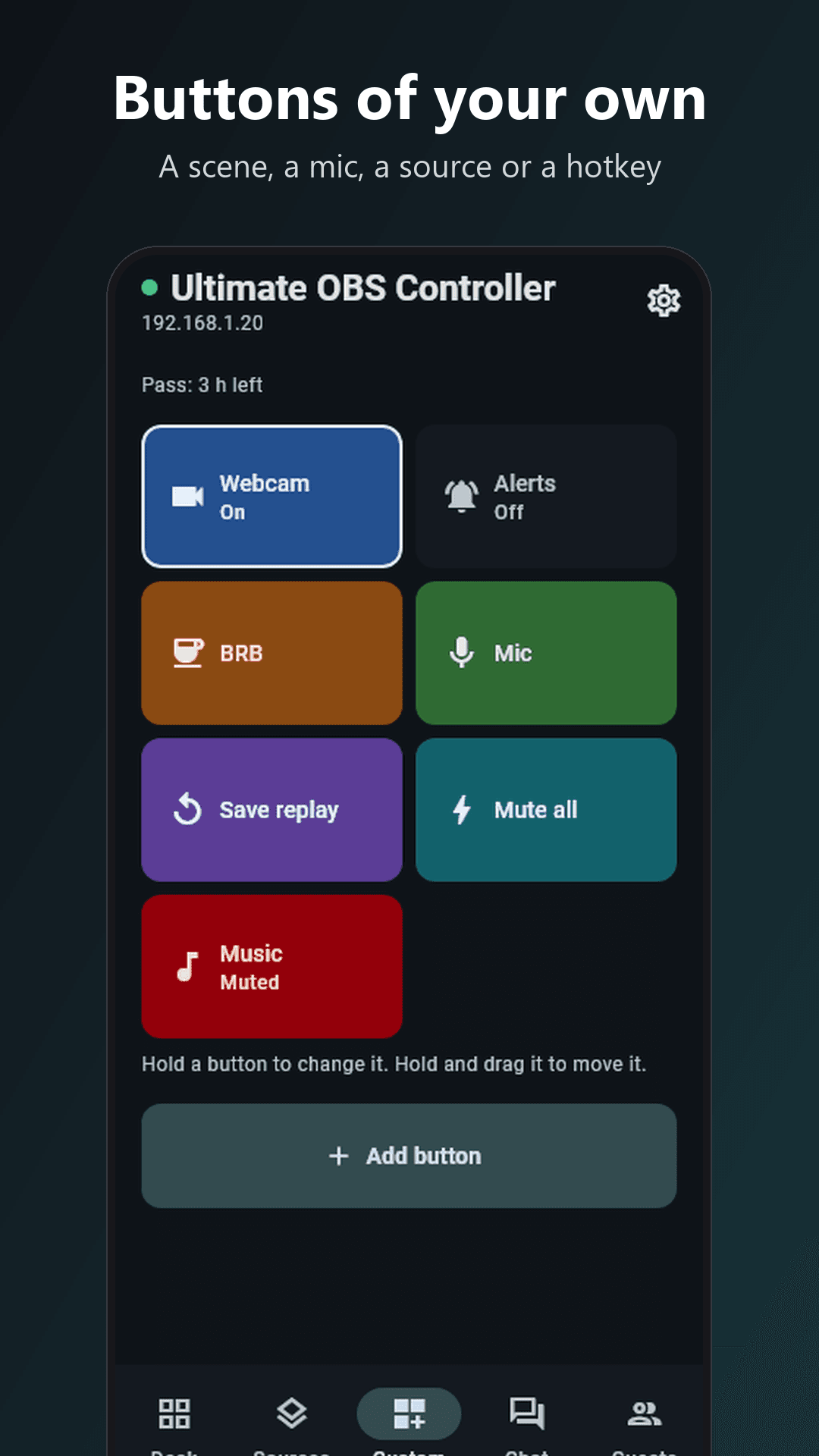
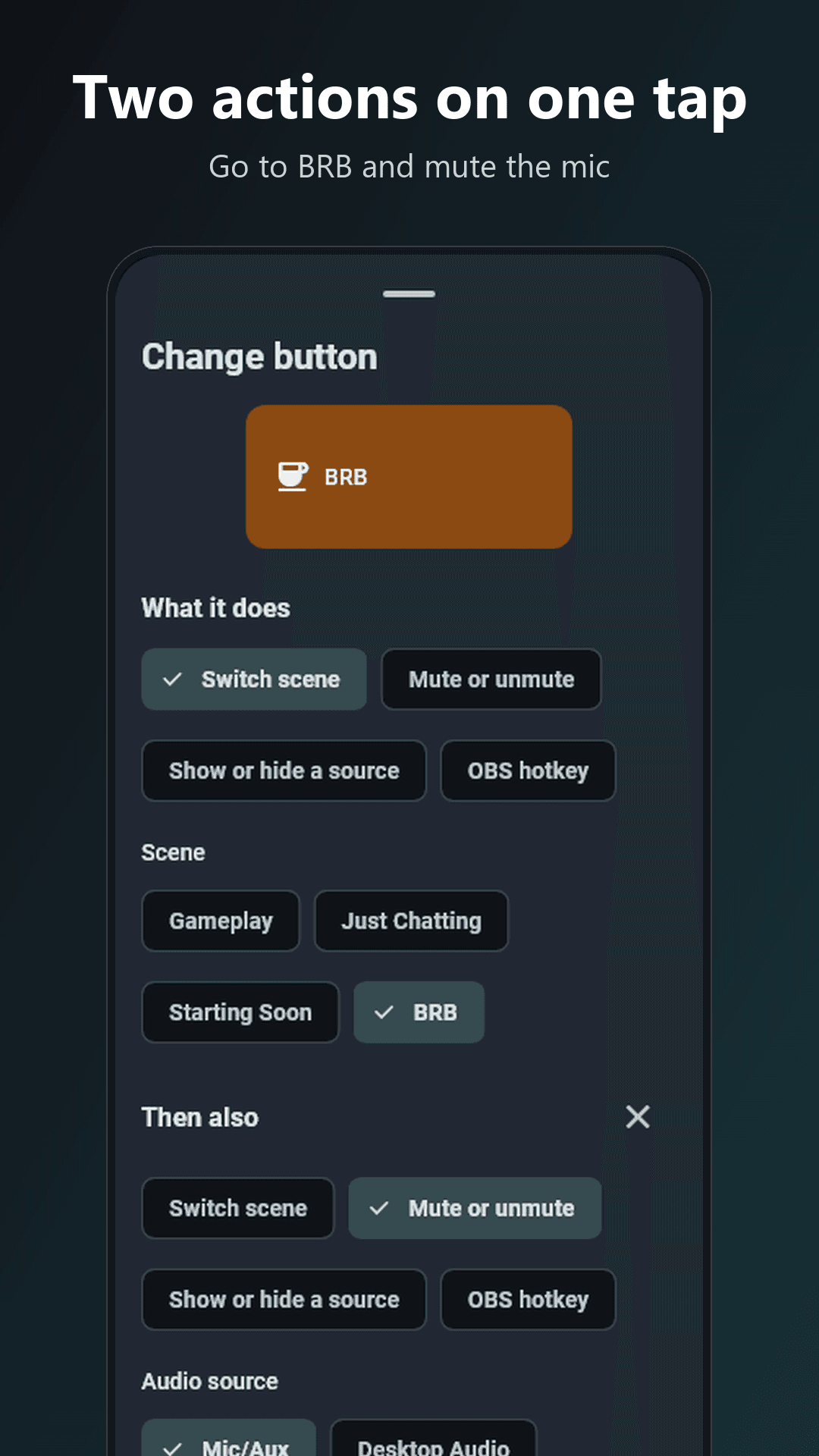
- Up to 24 custom buttons of your own: switch a scene, mute a microphone, show or hide a source (your webcam, an overlay) or press any OBS hotkey, or do two of these with one tap, like going to your BRB scene and muting the mic.
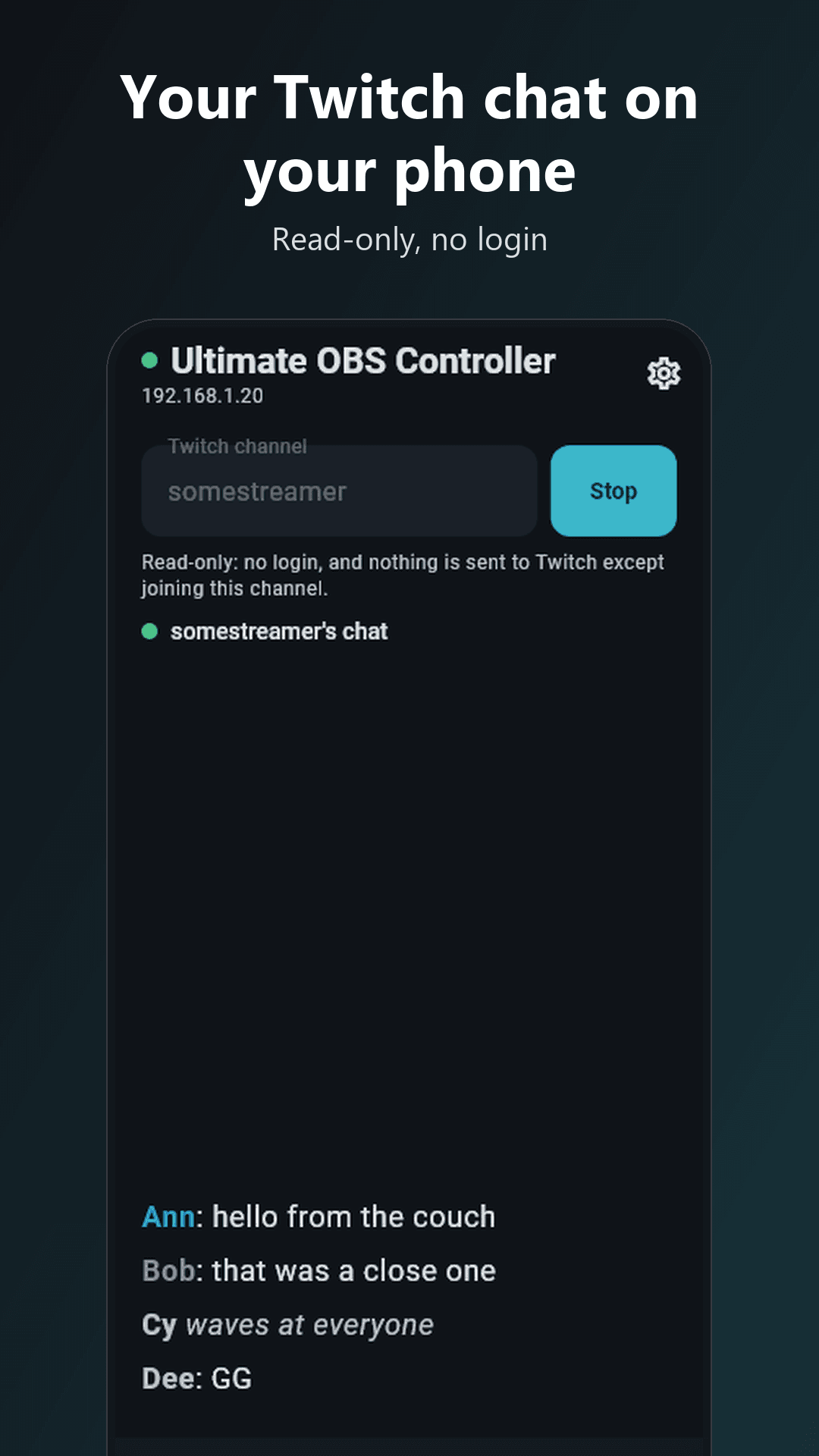
- Twitch chat mirror: read your chat on your phone. Read-only, no login.
- A live picture of each scene on its tile.
- Mic volume faders with a live level meter.
- Guests: friends join your stream with their phone camera from anywhere. Send them a link; they open it in their browser, no app or account, and the app puts them in OBS.
- Dark, with big buttons, and it works held sideways.
FREE: ONE SHORT AD OPENS EVERY FEATURE FOR TWO HOURS
Once you're connected, one short ad opens every feature for two hours, and a live show is never cut off: while you're live or recording, the deck keeps working until you stop. No ad to show? You're let in anyway. Nothing to buy.
NO NONSENSE
- No account, no sign-up, no subscription.
- No banner ads and no pop-up ads. The only ad is the one you start with Watch ad once you're connected, never while you're live.
- Your OBS address and password stay on your phone and go only to your own OBS.
- The camera is used only while you scan the code, which you need only if your OBS has a password. Nothing it sees is saved or sent.
- Guest video goes from your friend's browser to your OBS through VDO.Ninja, peer to peer or relayed by it. Nothing goes to us.
GOOD TO KNOW
- The app talks to OBS over your own network only, and finding OBS never leaves it.
- If OBS doesn't appear: make sure OBS is open on the PC, the phone and the PC are on the same network (not a guest network) and Windows Firewall lets OBS through. You can always type the address.
- The chat mirror shows what viewers write on Twitch, unfiltered.
This is an independent app. It is not made, endorsed or sponsored by the OBS Project or Twitch. OBS and Twitch are trademarks of their respective owners.
Questions or feedback? https://jabbie.world
Privacy policy: see the link on this page.